How to Verify a Google Business Profile Without an Address
Verify a Google Business Profile with your address hidden: what to film in the video, and what to do if verification fails or Get verified comes back.
In this article
- Are you a service-area business?
- How do you verify a Google Business Profile without showing your address?
- Stuck? Find what you’re seeing
- What if Google only offers a postcard?
- What if your video is rejected?
- What if “Get verified” comes back, or verification isn’t available?
- Which edits make you verify again?
- Can you use your home address?
- How big should your service area be?
- Which mistakes get service-area profiles in trouble?
- Should your website say where you work?
- More questions
- What to do this week
- Sources
Can you verify a Google Business Profile without an address? You verify with your real address, hide it so customers only see the areas you serve, then use the method Google offers you, such as a short phone video of your street, your tools and your van.
That’s how plumbers, cleaners, landscapers and mobile mechanics who work from home get verified without their house showing up on Google.
In one week of November (7 to 13 Nov 2026), Google showed this page 115 times for the exact search “how to verify google business without address” (our own Search Console data).
Are you a service-area business?
You are if you go to your customers and nobody comes to your address. Google’s own examples are “cleaning services or plumbers” (Manage your service areas). The question that decides it: do customers ever come to your address? If not, you’re a service-area business. Google also says a business without permanent signage at its address isn’t eligible as a storefront and “should be listed as a service-area business.”
How do you verify a Google Business Profile without showing your address?
Google says “to verify your business, enter a business address that Google can find”, so you enter your real one and then hide it. Once it’s hidden, your profile shows only your service areas (Manage your business address).
- Sign in to the Google Account that manages the profile, and open your Business Profile.
- Hide the address. Go to Edit profile → Location, select Edit next to “Business location”, turn off Show business address to customers, and save. (Manage your business address)
- Add your service areas. In the same Location screen, select Edit next to “Service area” and add cities or ZIP codes, up to 20 (Manage your service areas). Skip this and Google picks “a local area” for you (Manage your business address).
- Pick a verification method from the ones Google shows you. It might be a phone call or text, email, a live video call, a video recording or a postcard. You can’t pick your own: Google says the options “depend on your business type, public info, region, or business hours.” If video recording is on your list, Google recommends it. (Verify your business on Google)
- Record the video on your phone, from your Business Profile: tap Get verified and choose the business video option. Plan it first with the shot list below, because it has to be one live take. (Verify your business with a video recording)
- Wait for the review. Google says this takes up to 5 business days, and on rare occasions longer. You’ll get a confirmation email when you’re verified. (Verify your business on Google)
What to film: a shot list for the verification video
Google wants one unedited recording of at least 30 seconds, made and uploaded from your phone (Verify your business with a video recording). The timings below are our suggestion; Google only sets the 30-second minimum.
| Seconds | Film this | Why |
|---|---|---|
| 0–15 | The street sign at your corner, or a landmark close to your address. If you work from home, film signs and landmarks in your immediate neighborhood instead of your house. | Shows where the business operates |
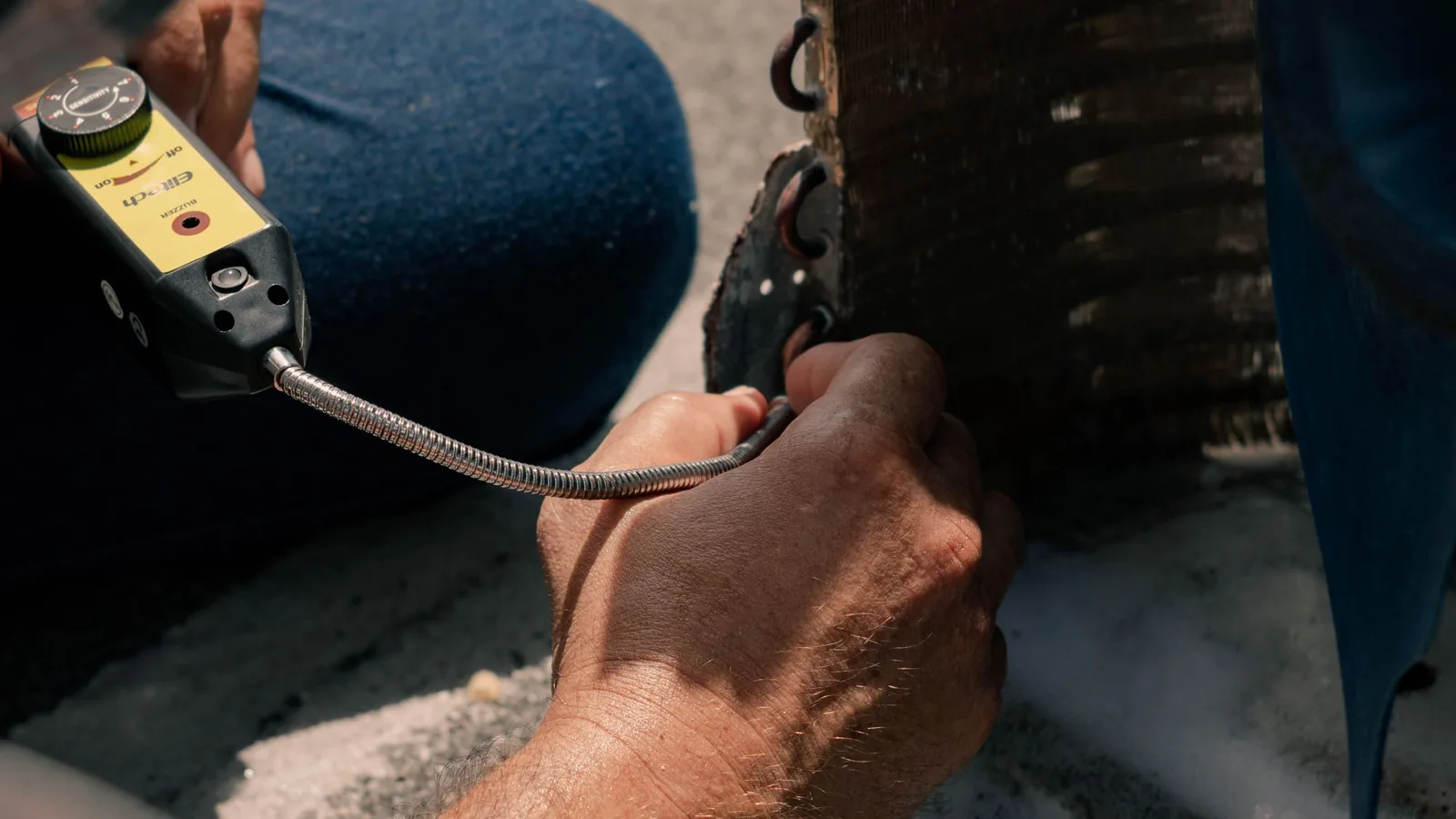
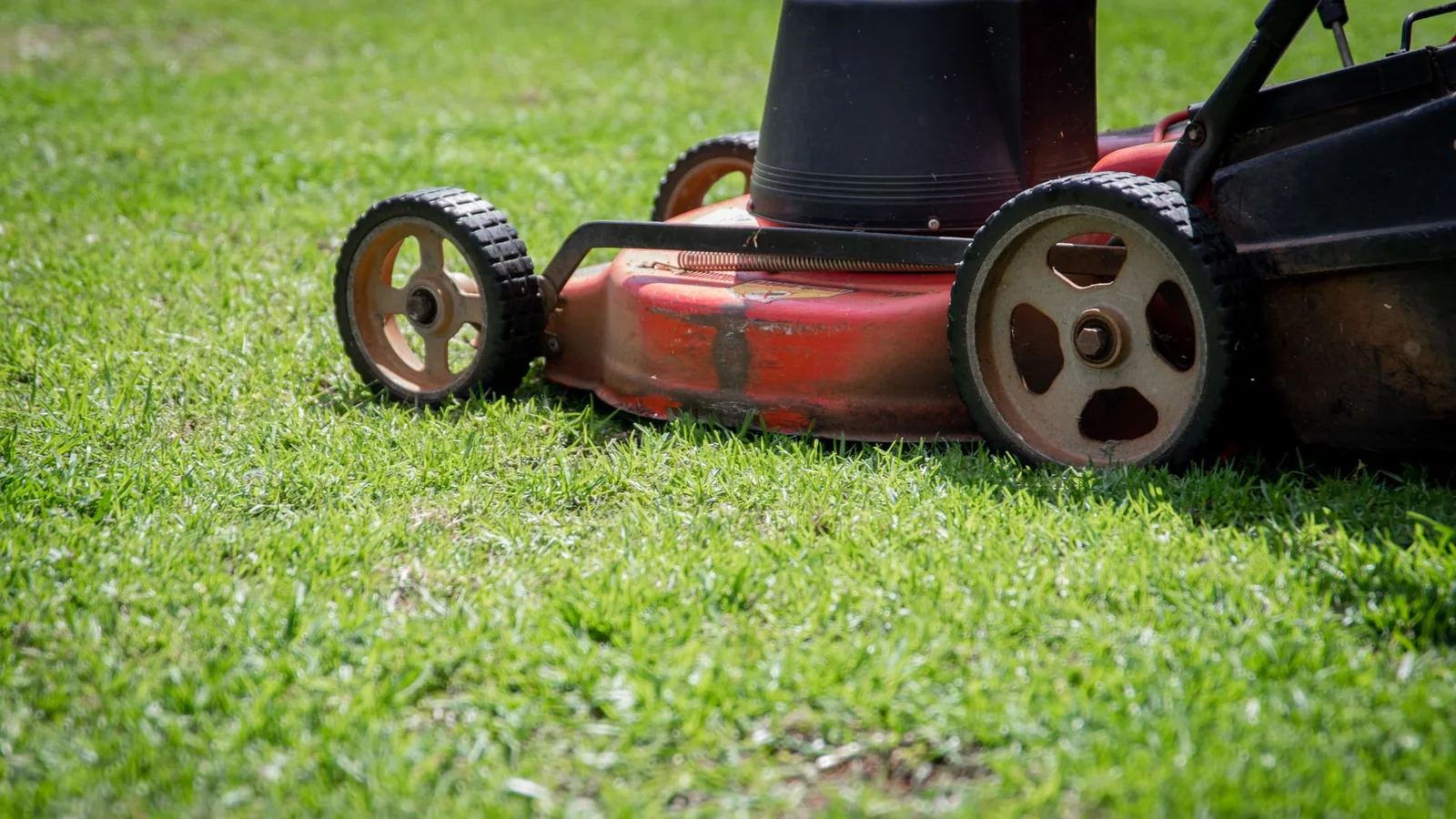
| 15–30 | Your work vehicle and the tools you use every day: the drain snake, the mower, the pressure washer. Add a business card or a shirt with your logo if you have one. | Shows the business exists |
| 30–45 | Open your van with your own key, or do part of a real job. | Shows you run it |
| 45–60 | A business permit, invoice or utility bill with the same business name as your profile. Keep account numbers covered. | Extra proof that you run it |
Before you press record:
- Walk the route once without filming. You can’t pause, and you can’t upload a clip you recorded earlier.
- Keep other people’s faces out of the frame, along with bank, tax or ID numbers and other customers’ names on a job sheet.
- Watch it back before you upload. If the street sign was blurry, tap Try again and do the whole take again.
After it’s verified you can delete the video yourself in your Business Profile’s advanced settings, and if you don’t, Google deletes it later (Verify your business with a video recording).
Stuck? Find what you’re seeing
| What you see | What it means | Do this next |
|---|---|---|
| Only a postcard is offered | Google picked the methods; you can’t change them | Request it, then leave your name, address and category alone until the code arrives |
| Video result “Not successful” or a “Review issues” notice | The video missed a requirement | Tap Review issues and record again, with everything from the first video plus what was missing |
| The video won’t upload | Uploads sometimes fail the first time | Upload it again |
| The “Get verified” button is back | Google couldn’t completely verify the business | Re-verify, and try the other methods if you’re offered more than one |
| Asked for more info to re-verify | Usually means some business details were recently changed | Select Get verified and go through it again |
| Nothing you’re offered works | Every method has failed | Contact Google Business Profile support |
| The profile is suspended | Google thinks it breaks a guideline | Use the appeals tool. Don’t make a new profile |
Each row is explained below, with the Google page it comes from.
What if Google only offers a postcard?
Use it, and then leave the profile alone until the code comes. Google says most codes arrive within 14 days and expire after 30 days (Verify your business on Google).
- Check the mailing address before you request it. The card goes to the address you entered.
- While you wait, don’t edit your business name, address or category. Google says the code you were sent won’t work if you do.
- Don’t ask for a new code because it’s slow. A new request cancels the card that’s already in the mail and starts the wait over.
- When it arrives, open your profile and type the 5-digit code in the “Code” field. Keep it to yourself: Google says it will never ask you for it.
What if your video is rejected?
Record a new one that fixes what was missing. On your phone, open the profile and tap Review issues. Google lists what the first video didn’t show; its own examples include “No nearby area shown” and “Missing proof of authorization to operate the business” (Verify your business with a video recording).
The new video has to include everything from the first one plus the missing part. If the “where” part was flagged, remember Google asks you to avoid “empty land or locations without clear markers”: find a street sign or a landmark someone could recognize.
If the video won’t upload at all, Google says uploads sometimes fail on the first try, so upload it again.
What if “Get verified” comes back, or verification isn’t available?
If the Get verified button shows up again on a profile you thought was done, Google says it “couldn’t completely verify your business.” Go through verification again, and if more than one method is offered, try a different one (Verify your business on Google).
If none of the methods work (Google says live video calls and postcards aren’t available for every business), try every option you do have, then contact Google Business Profile support.
A suspended profile has its own route, the appeals process. Check the profile against Google’s guidelines first, because an appeal “can only be submitted once.” You can attach a business registration, license or utility bill with the same name and address as the profile. Don’t create a second profile while you wait.
Which edits make you verify again?
Changing your business name or moving to a new address. Google says that if you change the name after verification you “might need to verify” again, and if you move to a new address “you must verify your business again” (Edit your Business Profile). More generally, Google says changes to your business info “may require re-verification” (Verify your business with a video recording). If a postcard is on its way, the postcard rules above apply too.
Can you use your home address?
Yes, as long as you hide it. Google’s guidelines use this exact case: “if you’re a plumber and run your business from your residential address, clear the address from your Business Profile” (Guidelines for representing your business).
What you can’t use instead, under the same guidelines:
- A P.O. box or a mailbox at a remote location. Google says these “aren’t acceptable.”
- A virtual office, meaning a mailing address you rent but don’t work from. Google says that location “isn’t eligible for a Business Profile.”
- A desk at a co-working space, unless it has clear signage, receives customers and is staffed by your team during business hours.
A borrowed address can cost you the profile. Your real address, hidden, is the easier setup anyway.
How big should your service area be?
Up to 20 places, and Google says the boundaries of your overall area “shouldn’t be more than about 2 hours of driving time from where your business is based.” You can’t set a radius around your address, only named areas such as cities and ZIP codes (Manage your service areas).
A practical test: list the towns or ZIP codes where you’d happily take a job tomorrow. A landscaper might list their own town and the 4 or 5 next door where they already mow. A cleaner who won’t drive across the river shouldn’t list the towns on the other side.
Which mistakes get service-area profiles in trouble?
Most of them come from trying to look bigger or closer than you are. Two to avoid, on top of the borrowed addresses above:
- A separate profile for each town you serve. Google says service-area businesses “can only have one profile for the whole area that they serve.”
- Town names or “24/7 emergency” in your business name. Google says unnecessary information in the name “could result in the suspension” of the profile. Use the name on your van and invoices.
Verified and still can’t find your business? Work through our checklist: why is my business not showing up on Google? For the rest of the profile (category, hours, photos), our step-by-step guide on getting your small business on Google Maps covers it.
Should your website say where you work?
Yes: list the same towns or ZIP codes there as text, and our plumber website checklist shows how to write that section for any trade that goes to customers.
More questions
What if I work out of my truck and have no shop at all?
You still need an address Google can find, and for most people that’s where they live or where the truck parks at night. Enter it and hide it. If your address has no street number, or Google can’t find it, you can drop a pin on the map instead (Manage your business address).
Can my face be in the video?
Yours can. Google’s own examples include recording yourself doing the work. Other people’s faces can’t, and neither can private details about you or anyone else.
Will a verified profile show up first in my town?
Not on its own. Google says verifying makes your business “more likely to show up in search results”, but where it shows still comes down to relevance, distance and popularity (Tips to improve your local ranking).
What to do this week
Open your profile, check that “Show business address to customers” is off, and walk the route for your video once with your phone in your pocket. If it fails, fix exactly what Google says was missing. If you’d rather hand the job over, VibeToApp also offers a done-for-you service that sets up your website and your Google profile and looks after both.
Sources
Google Business Profile Help pages, each opened and checked on 16 November 2026:
- Verify your business on Google
- Verify your business with a video recording
- Manage your business address
- Manage your service areas for service-area & hybrid businesses
- Guidelines for representing your business on Google
- Edit your Business Profile
- Fix suspended or disabled profiles
- Tips to improve your local ranking on Google
- Google Business Profile support